Connect WordPress to AI: API Credentials and Setup
Set up WordPress Application Passwords for AI agents, test REST API access, and troubleshoot HTTPS or 401 errors. Learn what needs separate code access.

What you need to connect WordPress to an AI agent#
For an agent that supports authenticated HTTP requests, the basic credentials are your HTTPS site URL, WordPress username, and a WordPress Application Password. The credential works within that user’s permissions. It is separate from the password used to sign in to wp-admin.
The setup below uses a local terminal and WordPress’s built-in REST API. A hosted agent may instead provide a connector or protected credential store; use its documented connection method. The WordPress credential format does not by itself guarantee that a particular agent supports this workflow.
You can use this connection for supported content operations such as drafting posts and updating pages. Theme code, plugin-specific settings, and some design changes need additional tools or access. Those are limits of this connection, not a universal limit on what AI can build in WordPress.
If your instructions come from clients, the Simple Commenter AI workflow can supply the page, element, screenshot, and comment context. Set up and verify WordPress access first.
Part 1: Giving an AI agent access to WordPress#
WordPress supports REST API authentication with Application Passwords. For an agent with HTTP or terminal access, you can use this built-in method without an authentication plugin.
An Application Password is a revocable, API-only credential tied to a single WordPress user. It can't be used to log into wp-admin through the browser login form, and you can revoke it in one click without touching your real password. That distinction matters, and it's why this is the right way to do it.
Step 1: Create the Application Password#
In wp-admin, go to Users → Profile, scroll to the bottom, and find the Application Passwords section. Give it a name like Claude Code and click add. WordPress shows you the password exactly once — something like abcd efgh ijkl mnop qrst uvwx. Copy it now.
Two things that trip people up here:
- Use HTTPS for a live site. If WordPress says Application Passwords require HTTPS or the section is unavailable, check the site URL, certificate, and whether WordPress recognizes HTTPS behind your host’s proxy. Local development environments can have different availability rules; see the Application Passwords guide.
- A plugin or site policy may disable it. Check the security configuration and ask the site administrator whether Application Passwords are allowed.
Step 2: Store the credentials outside the chat window#
Don't paste the password into a chat, a Slack message, or an email. Save it to a local file your agent can read. On macOS or Linux, create ~/.wp-credentials:
WP_URL="https://clientsite.com"
WP_USER="your-wordpress-username"
WP_APP_PASSWORD="abcd efgh ijkl mnop qrst uvwx"
Keep the quotes. The password contains spaces, and without quotes your shell will silently mangle it — this costs people twenty minutes more often than it should. Then lock the file down:
chmod 600 ~/.wp-credentials
Step 3: Verify it works#
source ~/.wp-credentials
curl -s -u "$WP_USER:$WP_APP_PASSWORD" "$WP_URL/wp-json/wp/v2/users/me"
A successful JSON response for the expected user confirms authentication. It does not grant every editing capability: each endpoint checks the user’s permissions. Start by reading an existing page, then try a draft change within that user’s role.
If you get a 404 instead of JSON, check the site URL and REST routing. Plain permalinks are one possible cause. Try the alternate route format before changing the site’s permalink configuration:
curl -s -u "$WP_USER:$WP_APP_PASSWORD" \
  "$WP_URL/?rest_route=/wp/v2/users/me"
Troubleshoot 401, 403, and missing Application Passwords#
A 401 response means the request was not accepted as authenticated. Recheck the WordPress username, Application Password, HTTPS URL, and whether the password was revoked. If the same credentials work in one client but not another, compare how the clients send authentication. Ask your host to check whether a proxy or security rule removes the Authorization header.
A 403 or a rest_cannot_* error may mean the authenticated user lacks permission for that operation. Read the JSON error message and check the required capability for the endpoint. Creating another password for the same user does not increase that user’s permissions.
If the Application Passwords section is missing, confirm HTTPS and the site’s security policy with an administrator. Do not disable a site’s protections just to make a connector work.
Scope and revoke access#
Use a dedicated WordPress user with the capabilities needed for the task. An Editor account may be enough for content work; site configuration and other operations can require different permissions. Create a separate Application Password for each connection so you can revoke it independently. WordPress documents the lifecycle in its Application Passwords guide.
Part 2: What REST-only access can and cannot change#
Authentication opens the endpoints that the user is allowed to use. It does not give an agent a general connection to the server’s files or every setting in wp-admin. WordPress’s REST API reference lists resources including posts, pages, media, templates, and global styles; availability and permissions depend on the resource and site configuration.
Content and block layouts#
An agent can draft or edit content through supported endpoints. Gutenberg block markup can form part of a page’s content, but the result still needs a browser review. Theme styling and installed blocks affect how that markup renders. Custom fields and page-builder data may need a plugin’s documented API rather than arbitrary writes to private data structures.
Theme and plugin code#
An Application Password does not provide SSH, SFTP, or repository access. For a PHP change, a child theme, or a custom plugin, use a development checkout and a controlled deployment workflow. An agent with the relevant code access can build WordPress functionality; that is a different connection from the content API configured above.
Styles and visual review#
Do not assume every theme setting is available through the same endpoint. Block-theme global styles and classic-theme Customizer settings have different storage and interfaces. Check the supported API for the active theme and desired change. Where file changes are necessary, use code access and review a diff.
An agent with browser or screenshot tools can inspect the result. Verify the actual pages and responsive layouts after changes, and use drafts or staging before publishing. This applies to new sites as well as small content edits.
Give the agent a specific task#
A working connection still needs a target: which page, which element, what should change, and what should stay the same. If that input comes from an email thread, use the client feedback workflow to collect it in context. The next section shows how those comments can reach an agent.
Part 3: If your instructions come from clients#
The translating problem isn't solved by a better agent or a smarter prompt. It's solved by changing the format feedback arrives in, so it lands as structured data instead of prose in an inbox.
That means whatever tool you use should capture, at minimum: which element, which page, what it looked like on screen. Any tool that does that can feed an agent. Simple Commenter’s website feedback workflow is the one I build, so it's the one I can show you end to end — but the pattern matters more than the product, and it's worth reading that way.
Step 1: Let the client point at the thing#
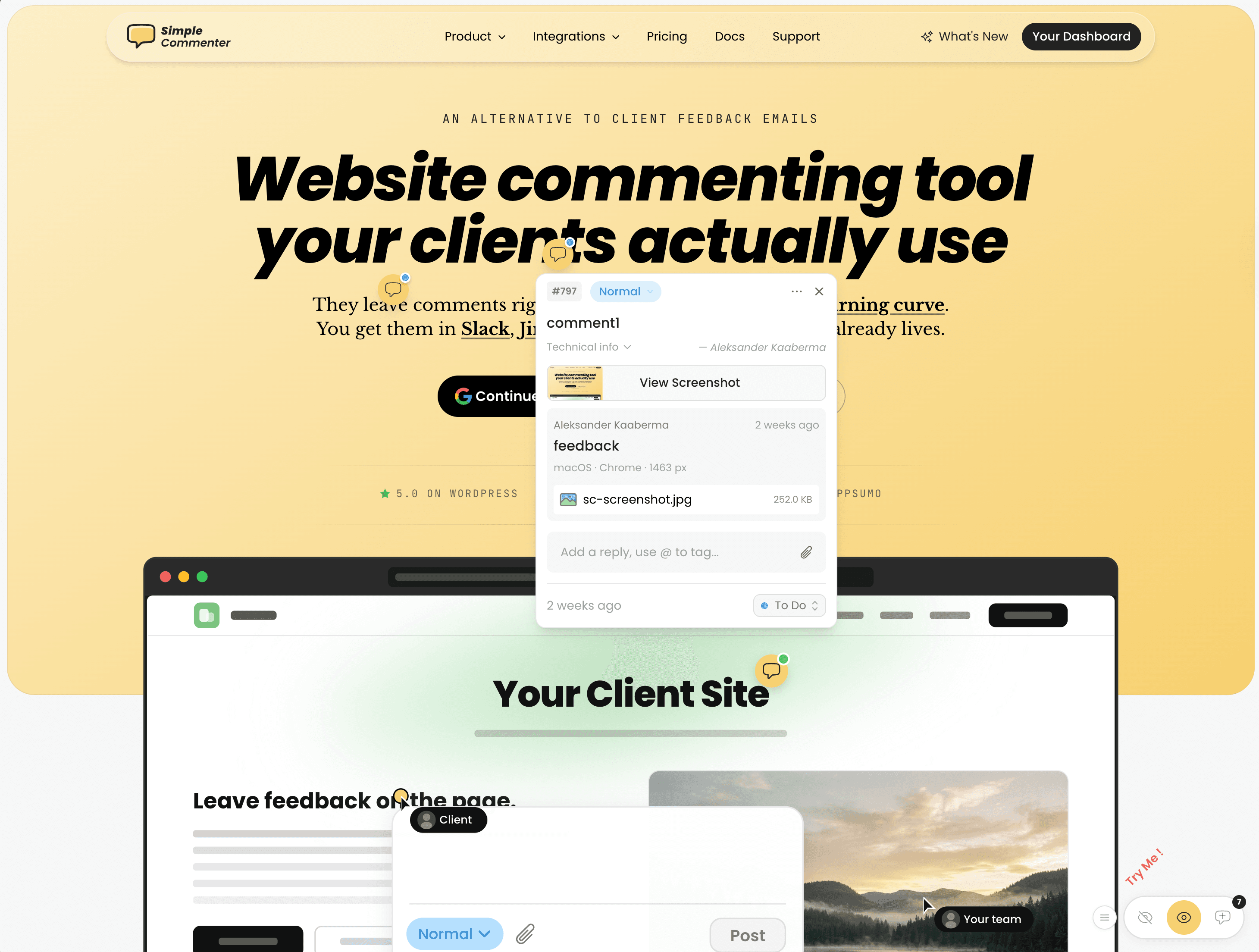
Simple Commenter puts a lightweight widget on your WordPress site. Your client opens the page, clicks the element they want changed, and types what they want. No account, no signup, no browser extension.
That's the whole design premise. The moment you ask a non-technical client to create an account before they can tell you the logo is too big, you've lost a week. Removing the login step is the single biggest thing you can do to shorten a review cycle — and it happens to be the same thing that makes the output machine-readable.
Every comment carries context automatically:
- The exact DOM element, captured as an XPath
- The page URL and click coordinates
- A screenshot of what the reviewer was looking at
- Browser and screen size
- Threaded replies, so a follow-up stays attached to the original note
The WordPress plugin lets you manage comments, replies, members, and settings inside WP admin. Use the reviewer access guide to choose how clients reach the review.
Step 2: Hand the feedback to your agent#
This is where the two halves connect. Simple Commenter ships a native MCP server, published on npm as @simple-commenter/mcp-server. MCP is the open protocol AI agents use to talk to outside tools — Claude Code, Cursor, and most modern agents support it.
The current AI connection guides cover hosted connections and local setup. For the local server, setup begins with:
npx @simple-commenter/mcp-server init
The wizard authenticates you with a six-digit code, lets you pick a project, and writes an .mcp.json into your project root. Restart your AI tool and it's connected. If anything looks off:
npx @simple-commenter/mcp-server doctor
The local setup described here uses tools for these tasks. Check the connected server’s tool list and the current integration guide, because supported connections and tools can change:
list_projects— every site in your accountlist_comments— filtered by status, priority, page, or search termget_comment— full detail, including the element XPath, screenshot, click position, and repliesupdate_comment_status— move an item to in progress or donereply_to_comment— write back what you found and fixed
Step 3: Review a proposed change#
Now the workflow you actually wanted is possible. You open Claude Code and type:
"Check Simple Commenter for open feedback and fix the issues."
Ask the agent to find the project, read an open comment, and inspect its available page, element, and screenshot context. It can propose a change using its separate WordPress or code access. Review and test the result before asking it to reply or update the comment’s status; those actions require write permission on the feedback connection.
After the change is verified, the client can follow the reply in the original comment thread.
The workflow is: client points at the problem → agent reads the feedback → agent proposes a change through the permitted API or codebase → you review and test → the comment is updated. The MCP connection supplies feedback context; it does not grant WordPress or repository access on its own.
Your first connected task#
- Create an Application Password for a user with the permissions the task needs.
- Test the credentials with a read-only request and confirm the expected user.
- Ask the agent to propose one draft content change. Preview and review it before publishing.
- Add repository, SSH, or SFTP access only when the work requires code changes and your deployment process supports it.
- For client revisions, connect feedback through MCP so the agent has the original comment and page context.
Found this useful? Add us as a preferred source and Google will show you more of our guides in Search and AI Overviews.